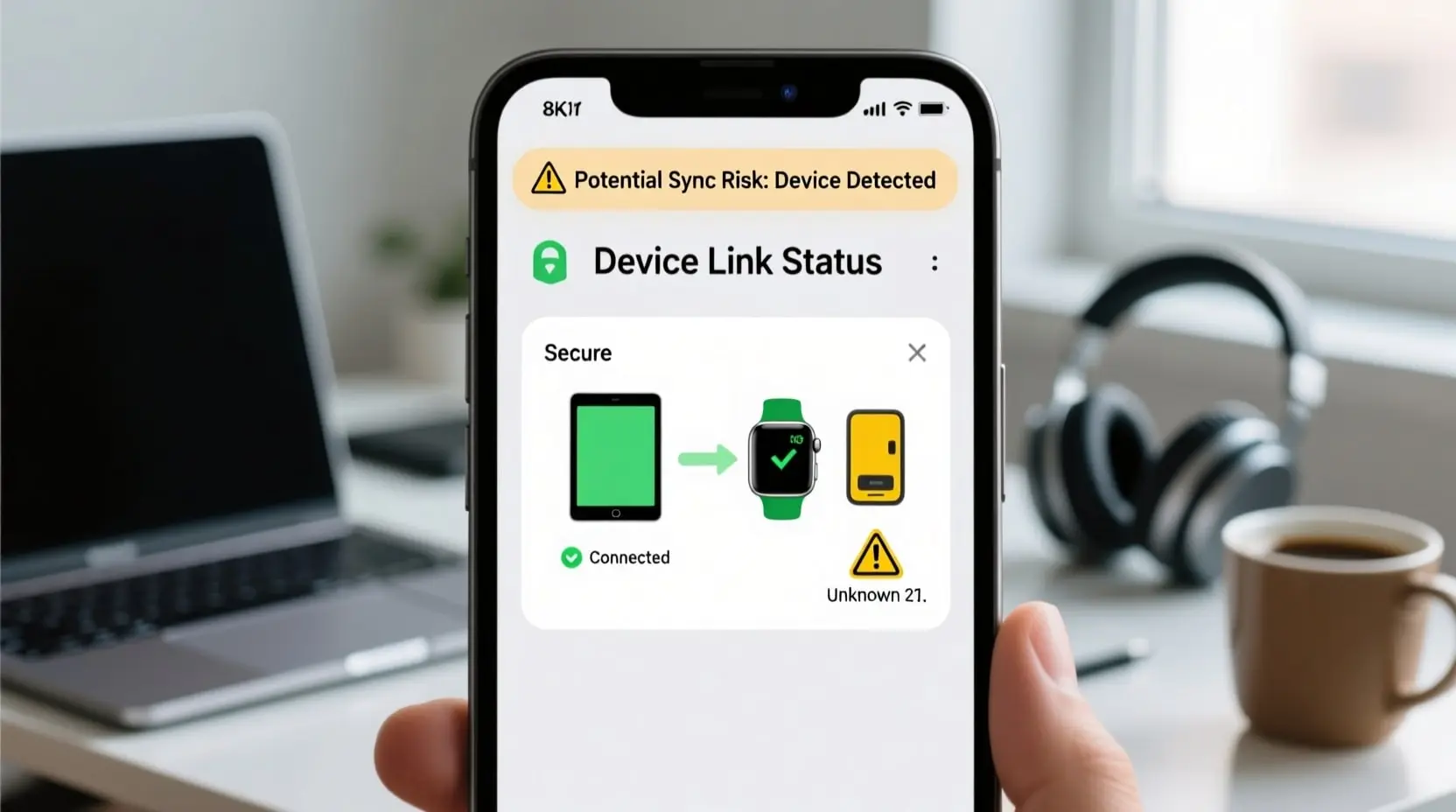
How Do I Know If My Phone Is Linked to Another Device Fast
Your phone holds your entire life. Bank accounts, private messages, photos, emails, and social media all live in your pocket. So what happens when someone else gains access without your permission? It’s a scary thought. If you’re wondering, “How do I know if my phone is linked to another device?” you’re not alone. Thousands of people search for this answer every day. The good news is that checking takes only a few minutes once you know where to look. This guide walks you through the fastest ways to spot unauthorized connections on both Android and iPhone devices.
Warning Signs Your Phone Might Be Connected to Someone Else
Before diving into settings, pay attention to what your phone is telling you. Strange behavior often signals that something is wrong. Your battery draining faster than usual could mean another device is pulling data. Random apps appearing that you never downloaded is another red flag. You might notice your phone heating up even when you’re not using it.
Watch for unusual data usage spikes. If your monthly data suddenly jumps without explanation, someone might be syncing your information. Text messages marked as read before you open them should raise concerns. The same goes for emails. Sometimes you’ll receive security alerts about logins from unfamiliar locations. Don’t ignore these warnings. They exist for a reason.
Slow performance can also indicate problems. When your phone struggles with simple tasks, background processes might be running without your knowledge. Pop-ups and strange notifications deserve attention too. Trust your gut. If something feels off, investigate.
How Do I Know If My Phone Is Linked to Another Device on Android?
Android makes checking connected devices straightforward. Open your Settings app first. Tap on Google, then select Manage your Google Account. Look for the Security tab at the top. Scroll down until you find Your Devices or Devices with account access. This section shows every phone, tablet, and computer signed into your Google account.
Review this list carefully. You’ll see device names, locations, and recent activity times. Anything unfamiliar needs to go immediately. Tap on the suspicious device and select Sign out or Remove. This kicks that device off your account right away.
Check your Bluetooth connections next. Go to Settings, then Connected Devices or Bluetooth. Review paired devices. Old gadgets you no longer use should be removed. Someone with physical access to your phone in the past might have paired their device.
Don’t forget about Samsung users. If you have a Samsung phone, check Samsung Cloud separately. Go to Settings, tap your name at the top, then Samsung account. Look for Devices and review what’s listed there.
Checking Connected Devices on iPhone
Apple provides clear tools for monitoring device access. Open Settings and tap your name at the top. Scroll down to see all devices using your Apple ID. Each iPhone, iPad, Mac, and Apple Watch appears here. Tap any device to see its details, including serial number and model.
Remove anything you don’t recognize by tapping the device and selecting Remove from Account. This prevents that device from accessing your iCloud data, photos, messages, and more.
Check your iCloud settings too. Some apps might have permission to sync across devices. Go to Settings, tap your name, then iCloud. Review which apps have access. Turn off syncing for anything sensitive if you’re concerned about privacy.
Look at your Messages settings specifically. Someone might have set up a text message forwarding to another device. Go to Settings, then Messages, and check Text Message Forwarding. Remove any devices you don’t own.
Third-Party Apps That Might Be Sharing Your Data
Linked devices aren’t the only concern. Apps themselves can share your information across multiple platforms. Check which apps have account access on your phone. Both Android and iPhone let you review connected third-party apps.
On Android, go to Settings, then Google, then Manage your Google Account. Tap Security and find third-party apps with account access. Remove anything suspicious or outdated.
On iPhone, go to Settings, then Privacy and Security. Review which apps have access to sensitive features like location, camera, microphone, and contacts. Revoke permissions that seem unnecessary.
Social media apps deserve special attention. Facebook, Instagram, and others allow you to check active sessions. Open each app and find the security or login settings. Log out of sessions you don’t recognize.
Steps to Secure Your Phone After Finding Unknown Devices
Discovering an unknown device feels alarming. Stay calm and take action. First, remove the device using the steps above. Then change your passwords immediately. Start with your Google or Apple ID password since these control everything else.
Enable two-factor authentication if you haven’t already. This adds an extra layer of protection. Even if someone has your password, they can’t log in without the second verification step.
Consider running a security scan. Both Android and iPhone have built-in security features. Android users can use Google Play Protect. iPhone users should ensure their software is current since Apple builds security into iOS updates.
Review your recent account activity. Check email sent folders for messages you didn’t write. Look at purchase history for unauthorized transactions. Monitor your bank statements for the next few weeks.
Keep Your Phone Safe Moving Forward
Now you know “How do I know if my phone is linked to another device?” and what to do about it. Make checking connected devices a regular habit. Once a month works well for most people. Update your passwords every few months. Never share your lock screen code with people you don’t fully trust. Be careful when connecting to public WiFi networks. Use a VPN when possible. Your phone security depends on staying aware and taking quick action when something seems wrong.










Post Comment